 Mr. Latte Story
Setting Up SMTP with AWS Simple Email Service

This English page is a machine translation of the Korean original, so some wording may read a little off.
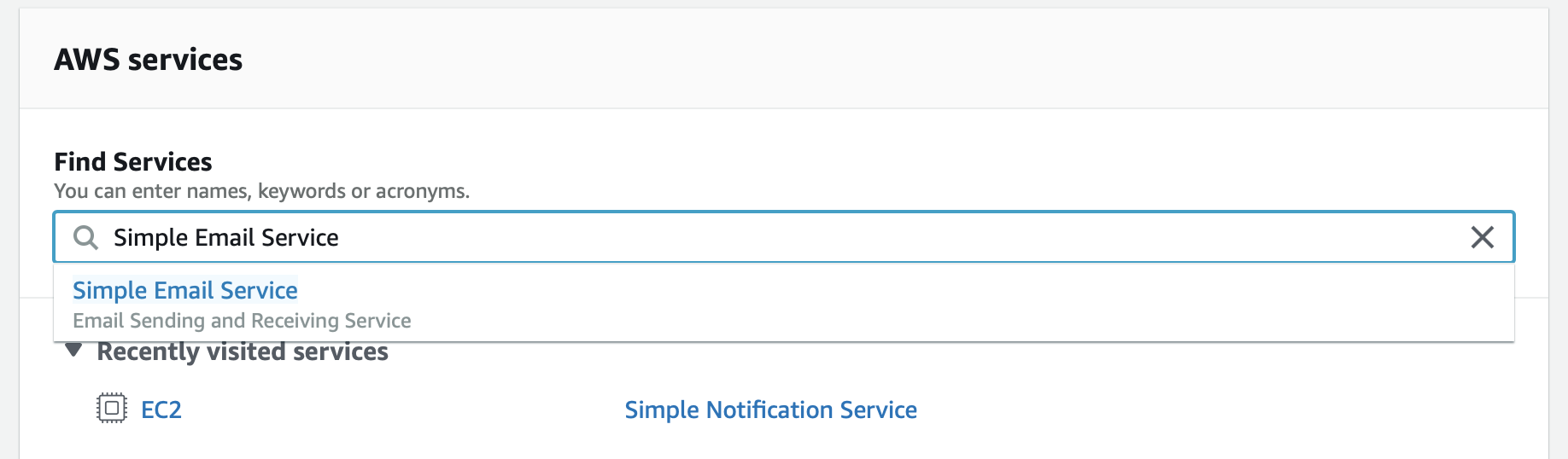
When I needed an SMTP service for sending mail I used to reach for sendgrid or mailgun. If the rest of your stack already lives on AWS, though, staying inside it is easier to manage than adding another vendor. AWS offers SMTP under the name Simple Email Service. You can find it by searching for the service:
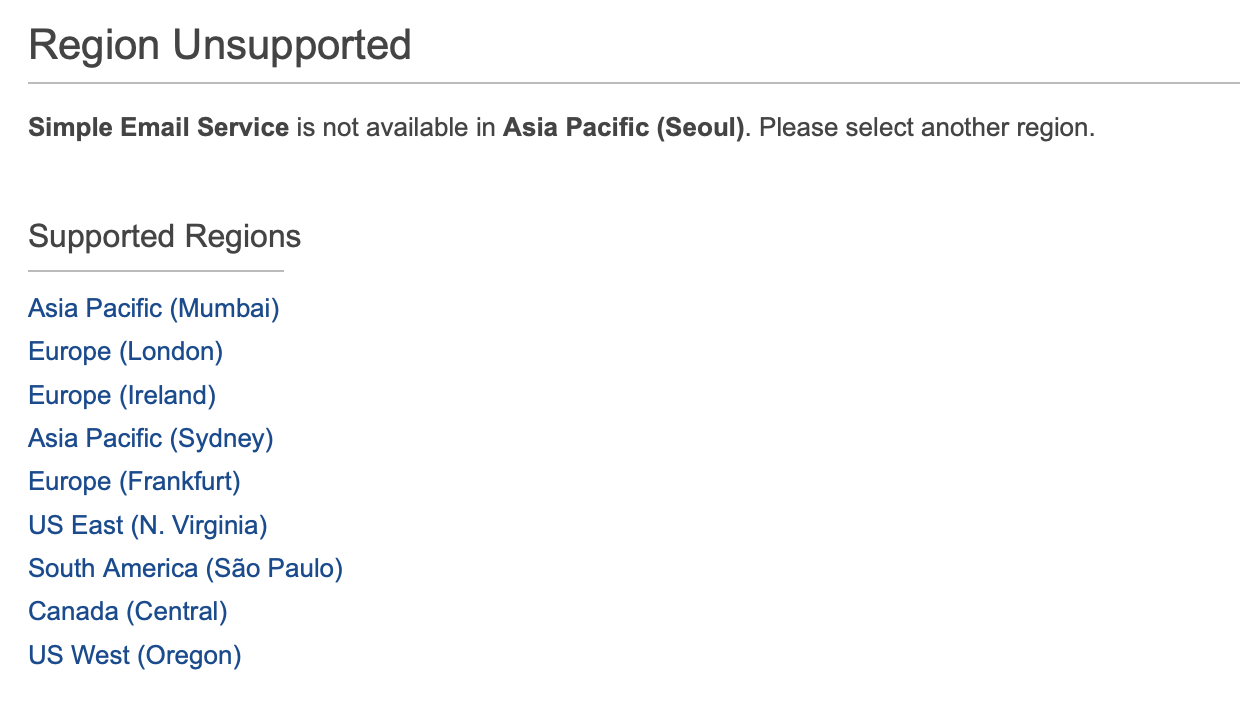
If you try to run it in the Seoul region you will get a message saying the region is not supported. In that case pick whichever region sits closest to the server that will connect to SMTP. I chose US West.
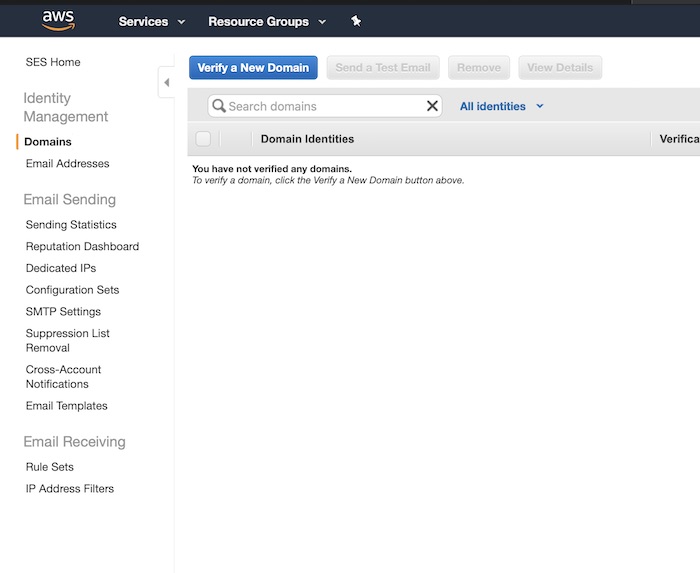
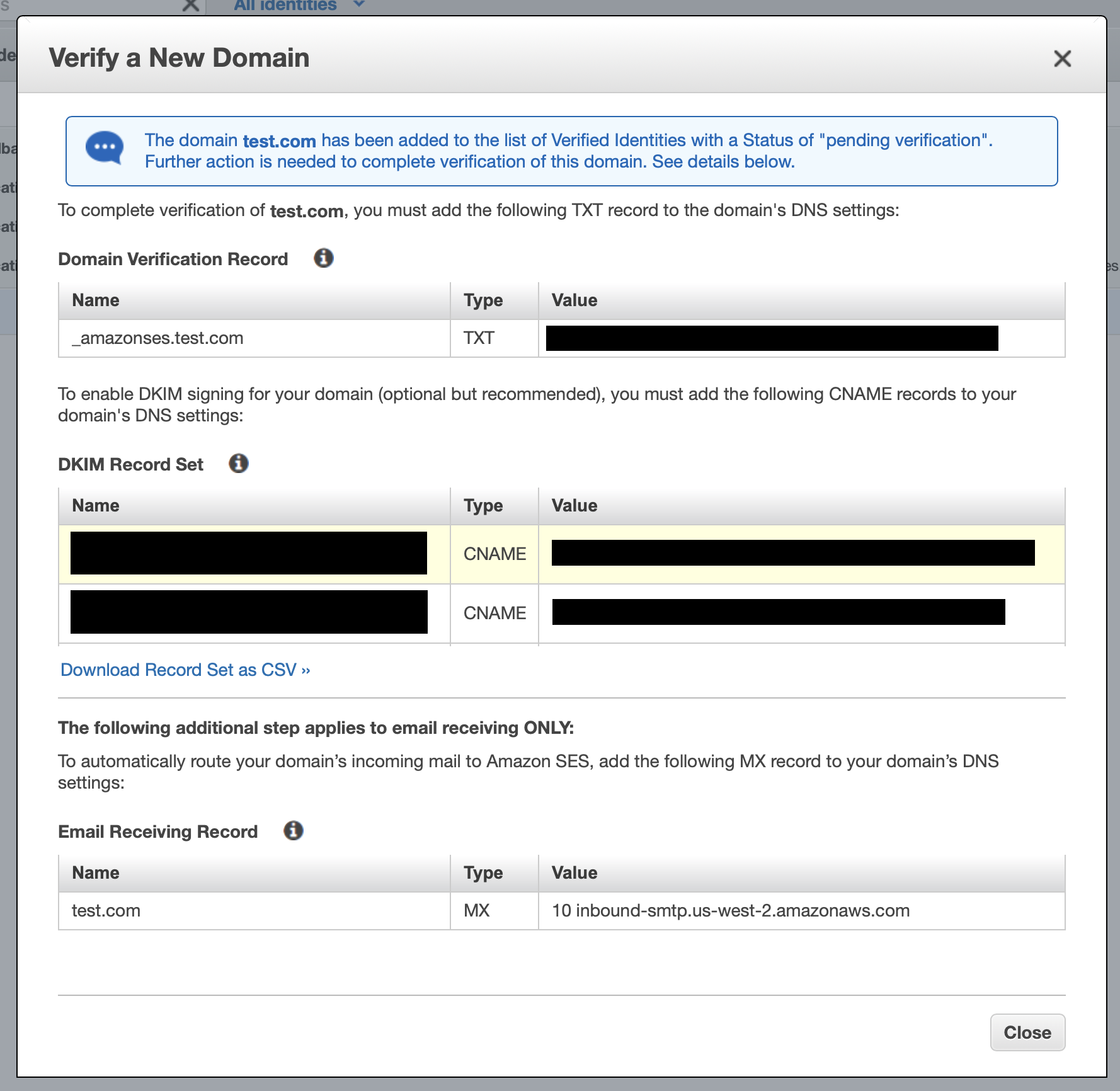
Next comes the domain verification screen. Choose Verify a New Domain to start.
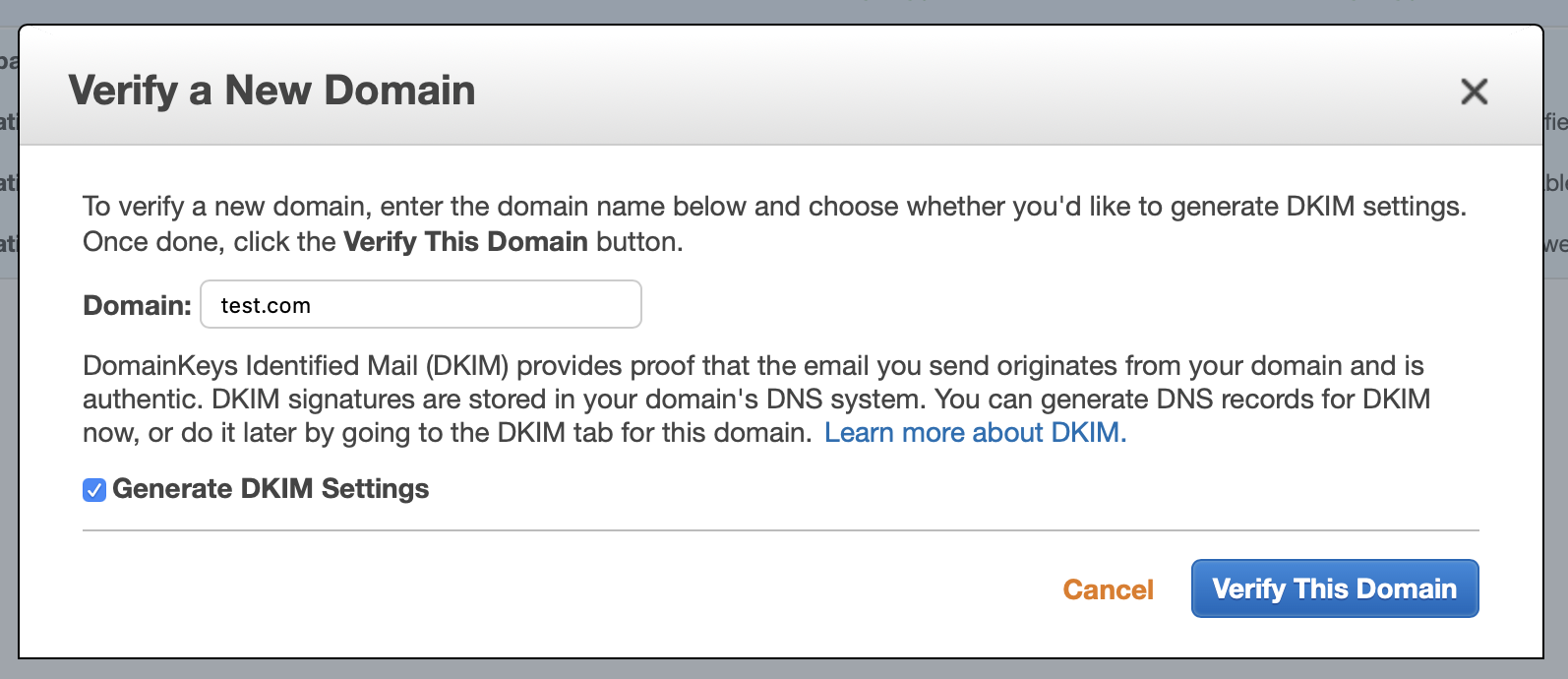
Verification asks for a domain name and offers an option to generate DKIM settings. Enter the domain of the address you will send from, and I would take the DKIM option.
DKIM stands for DomainKeys Identified Mail, a technique for preventing forged mail from a given domain. Because of how the SMTP protocol works, the sender shown on a message is simply whatever the sender typed; the protocol never verifies it. That made it easy for spam and abuse to go out under a trusted address. DKIM uses a private and a public key: the sender signs the outgoing headers with the private key, and the receiving mail server compares that against the DKIM public key published in the domain's DNS TXT record, decrypting the signature to confirm the source. It is worth setting up an SPF record alongside it. SPF works on a similar principle, using DNS to confirm which sources may send.
The next screen shows the DNS records you need to add. You can enter them by hand, and if you use Route 53 there is a button that adds them all at once.
Once DNS propagates you will see the verified state.
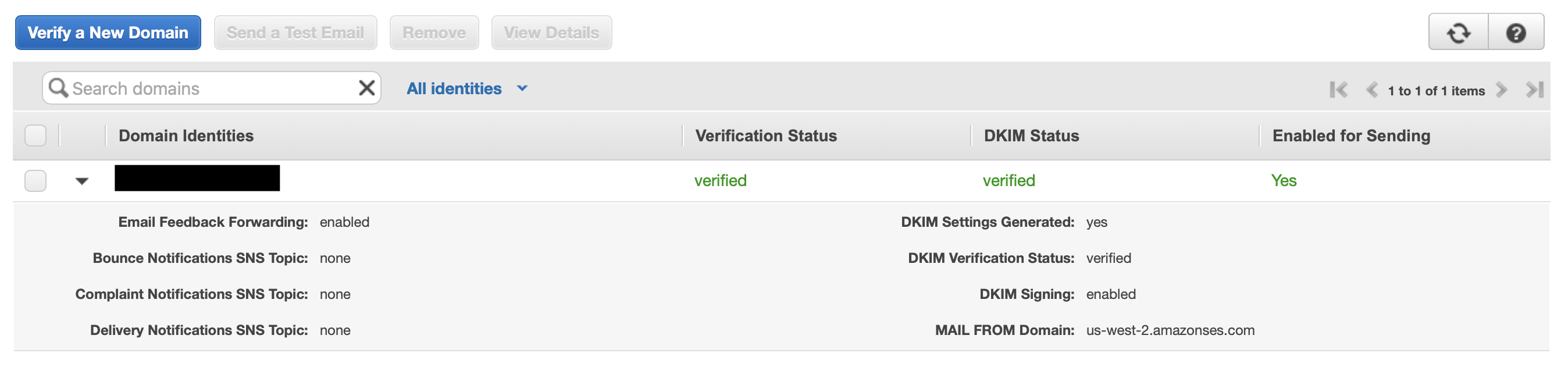
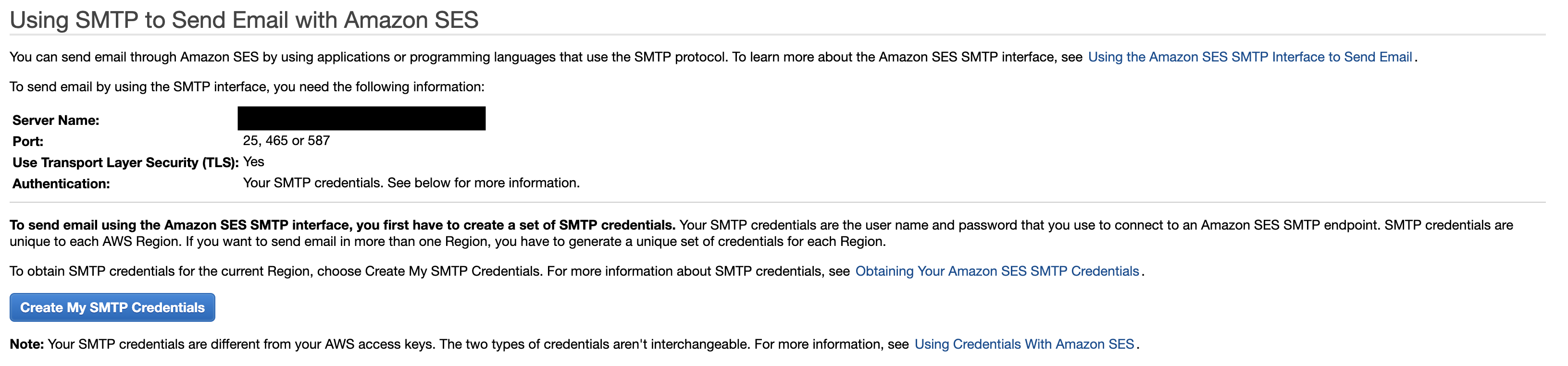
Now choose SMTP Settings from the left menu.

This shows the SMTP Server Name, Port, and credential details. Nothing is usable yet because the credentials have not been created. Click Create My SMTP Credentials.
That opens a page asking for an IAM User Name. Enter whatever name you want.
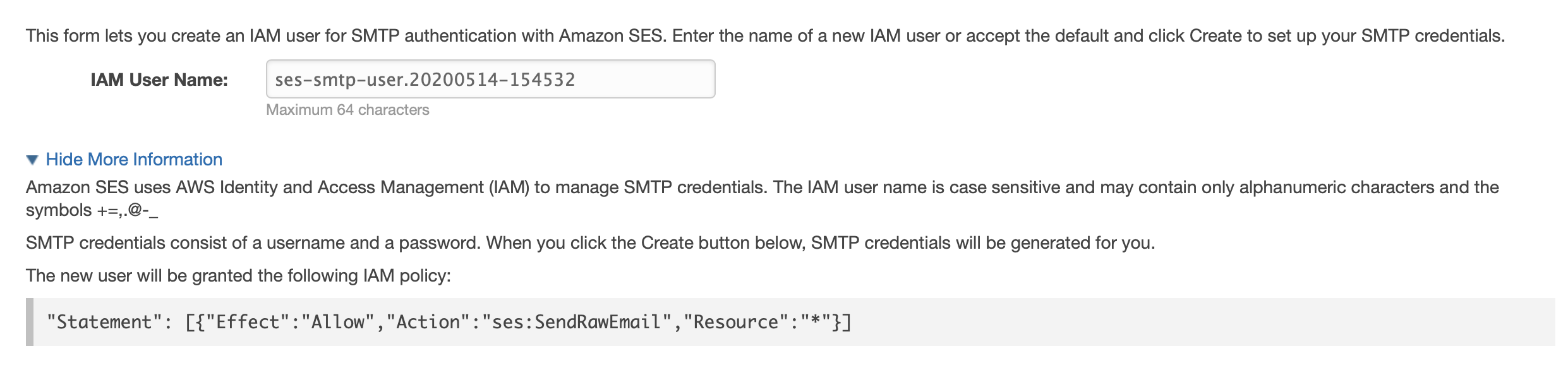
When it finishes you get a Username and Password. Those are the values you put into your SMTP connection settings.

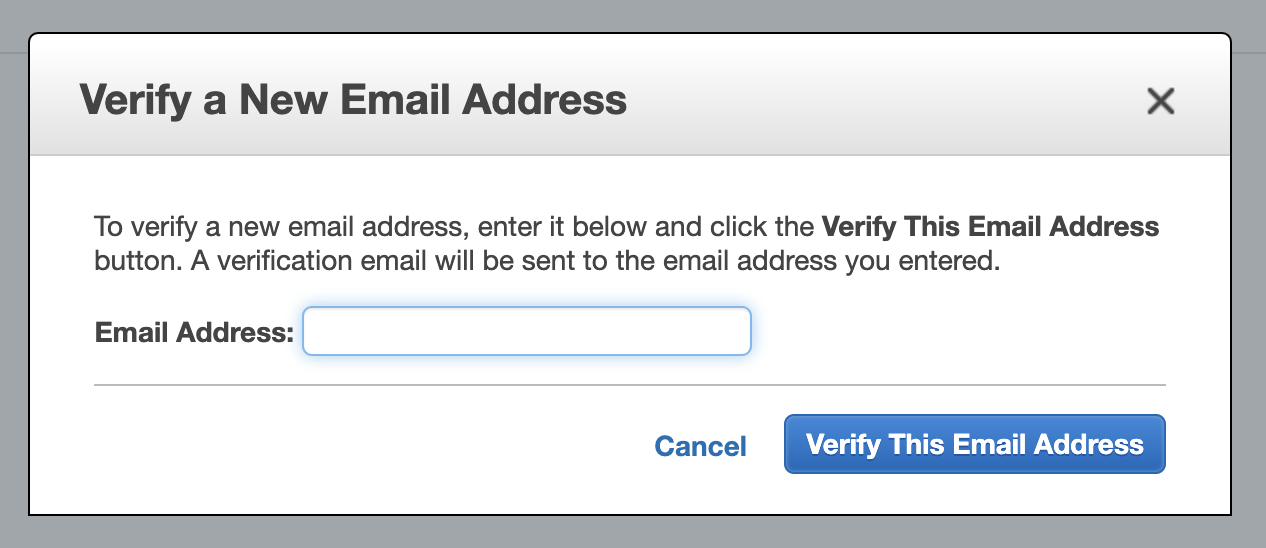
The next step is verifying the address you send from. Under Email Addresses, click Verify a New Email Address and enter it.
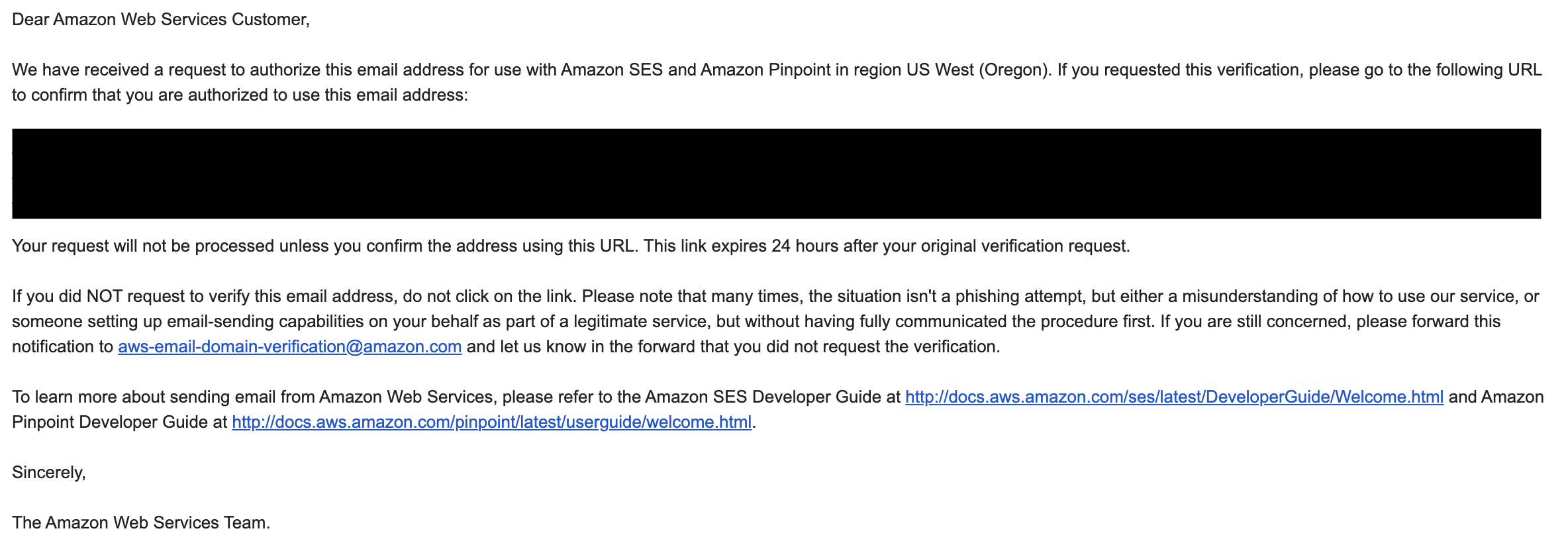
You will receive a verification mail; click the link in it.
Once verified, the status shows as complete.

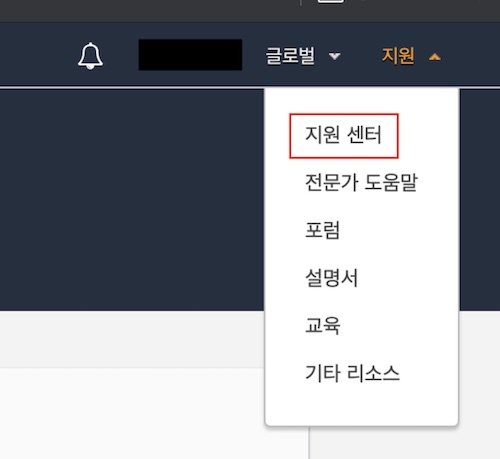
The last thing left is getting out of the sandbox. By default Simple Email Service only lets you send to verified addresses. If your service needs more, you can have the limit lifted through the support centre. Open Support and choose Support Center.
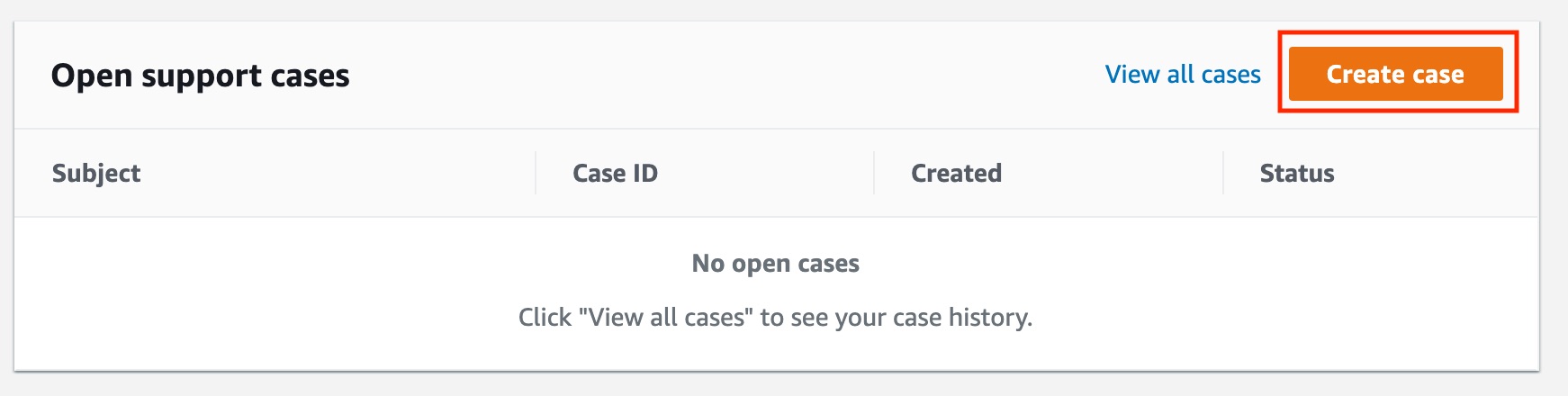
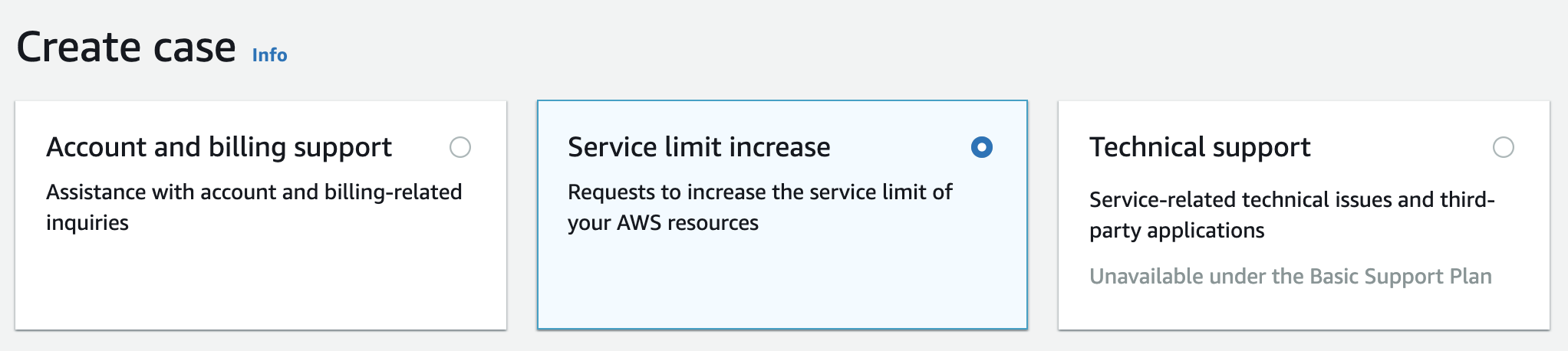
From there, choose Create case.
Select Service limit increase.
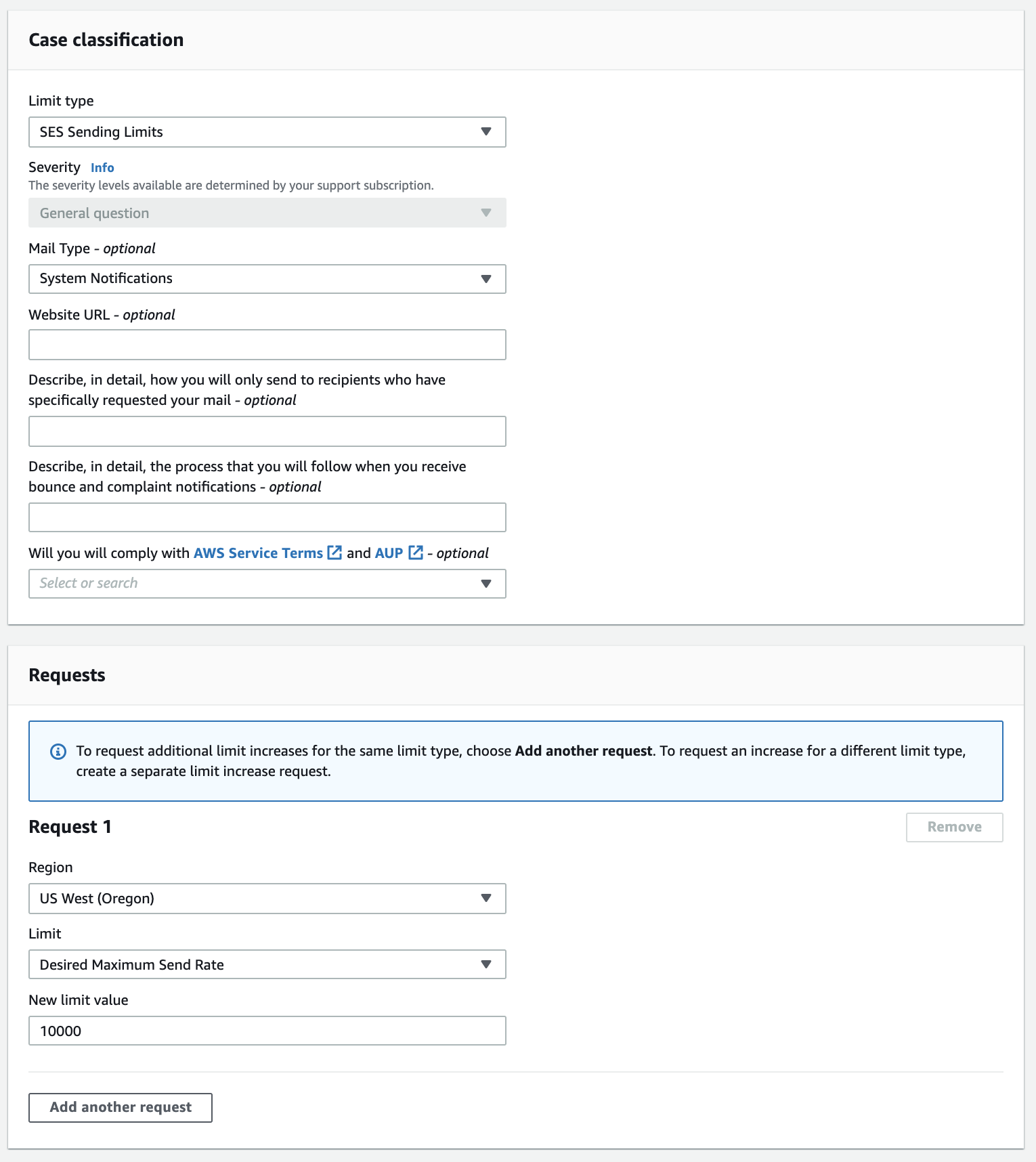
Fill in the fields below, adding anything else worth noting, and describe in Use case description exactly how your service sends mail. From what is published online, wording along these lines works if your service is similar:
- Recipient addresses are collected with the user's consent.
- Bounced mail is reviewed by a system administrator, who then corrects or removes the address.
- Complaints are received and handled by email, message board, and phone.
- The capacity increase requested above is sized against our expected peak.
A day or two after submitting you get the message below and everything is done. They granted a higher limit than I had asked for. (The rest of the mail is omitted.)
Hello,

Thank you for submitting your request to increase your sending limits. Your new sending quota is 50,000 messages per day. Your maximum send rate is now 14 messages per second. We have also moved your account out of the Amazon SES sandbox.

This takes effect immediately in the US West (Oregon) region. You can view the current sending rate and sending quota for your account on the Sending Statistics page of the Amazon SES console, or by using the GetSendQuota API.

We noticed that you did not provide the information requested below. Please review the following information and make the necessary changes to avoid any interruption in your sending.